
OPC UA Protocol
OPC UA Protocol
OPC UA Subscription Data
This feature allows users to subscribe to data from IoTDB using the OPC UA protocol. The communication modes for subscription data support both Client/Server and Pub/Sub.
Note: This feature is not about collecting data from external OPC Servers and writing it into IoTDB.
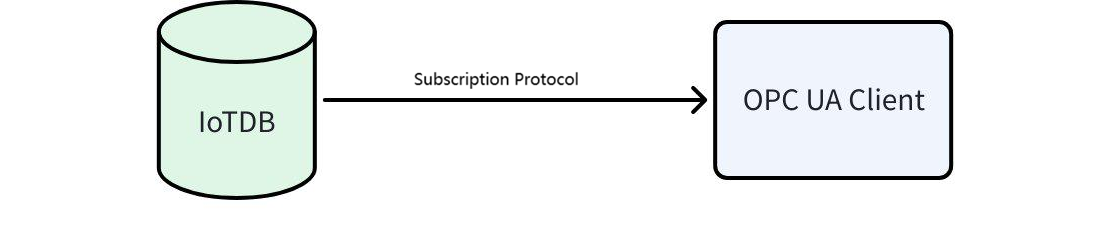
OPC Service Startup Method
Syntax
The syntax to start the OPC UA protocol:
create pipe p1
    with source (...)
    with processor (...)
    with sink ('sink' = 'opc-ua-sink',
               'sink.opcua.tcp.port' = '12686',
               'sink.opcua.https.port' = '8443',
               'sink.user' = 'root',
               'sink.password' = 'root',
               'sink.opcua.security.dir' = '...'
              )
Parameters
| key | value | value range | required or not | default value |
|---|---|---|---|---|
| sink | OPC UA SINK | String: opc-ua-sink | Required | |
| sink.opcua.model | OPC UA model used | String: client-server / pub-sub | Optional | pub-sub |
| sink.opcua.tcp.port | OPC UA's TCP port | Integer: [0, 65536] | Optional | 12686 |
| sink.opcua.https.port | OPC UA's HTTPS port | Integer: [0, 65536] | Optional | 8443 |
| sink.opcua.security.dir | Directory for OPC UA's keys and certificates | String: Path, supports absolute and relative directories | Optional | Opc_security folder/<httpsPort: tcpPort>in the conf directory of the DataNode related to iotdb If there is no conf directory for iotdb (such as launching DataNode in IDEA), it will be the iotdb_opc_Security folder/<httpsPort: tcpPort>in the user's home directory |
| sink.opcua.enable-anonymous-access | Whether OPC UA allows anonymous access | Boolean | Optional | true |
| sink.user | User for OPC UA, specified in the configuration | String | Optional | root |
| sink.password | Password for OPC UA, specified in the configuration | String | Optional | root |
Example
create pipe p1
    with sink ('sink' = 'opc-ua-sink',
               'sink.user' = 'root',
               'sink.password' = 'root');
start pipe p1;
Usage Limitations
- After starting the protocol, data needs to be written to establish a connection. Only data after the connection is established can be subscribed to.
- Recommended for use in standalone mode. In distributed mode, each IoTDB DataNode acts as an independent OPC Server providing data and requires separate subscription.
Examples of Two Communication Modes
Client / Server Mode
In this mode, IoTDB's stream processing engine establishes a connection with the OPC UA Server via an OPC UA Sink. The OPC UA Server maintains data within its Address Space, from which IoTDB can request and retrieve data. Additionally, other OPC UA Clients can access the data on the server.
- Features:
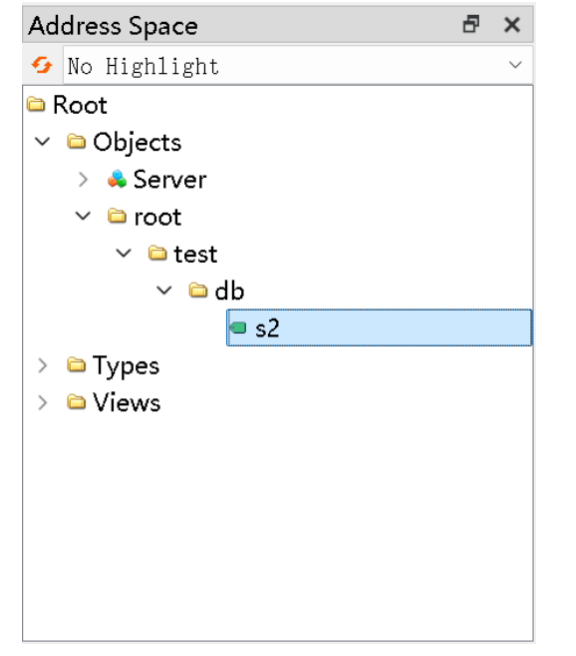
- OPC UA organizes device information received from the Sink into folders under the Objects folder according to a tree model.
- Each measurement point is recorded as a variable node, storing the latest value from the current database.
- OPC UA cannot delete data or change data type settings.
Preparation Work
Take UAExpert client as an example, download the UAExpert client: https://www.unified-automation.com/downloads/opc-ua-clients.html
Install UAExpert and fill in your own certificate information.
Quick Start
Scenarios Supporting the None Security Policy
Use the following SQL to create and start the OPC UA Sink in client-server mode. For detailed syntax, please refer to: IoTDB OPC Server Syntax
create pipe p1 with sink ('sink'='opc-ua-sink', 'opcua.security-policy'='AES128_SHA256_RSAOAEP, AES256_SHA256_RSAPSS, BASIC256SHA256, NONE');Note: Since version V1.3.7.2, None is no longer supported by default. To use it, you must manually enable it via the security-policy parameter as shown above.
Write some data.
insert into root.test.db(time, s2) values(now(), 2)The metadata is automatically created and enabled here.
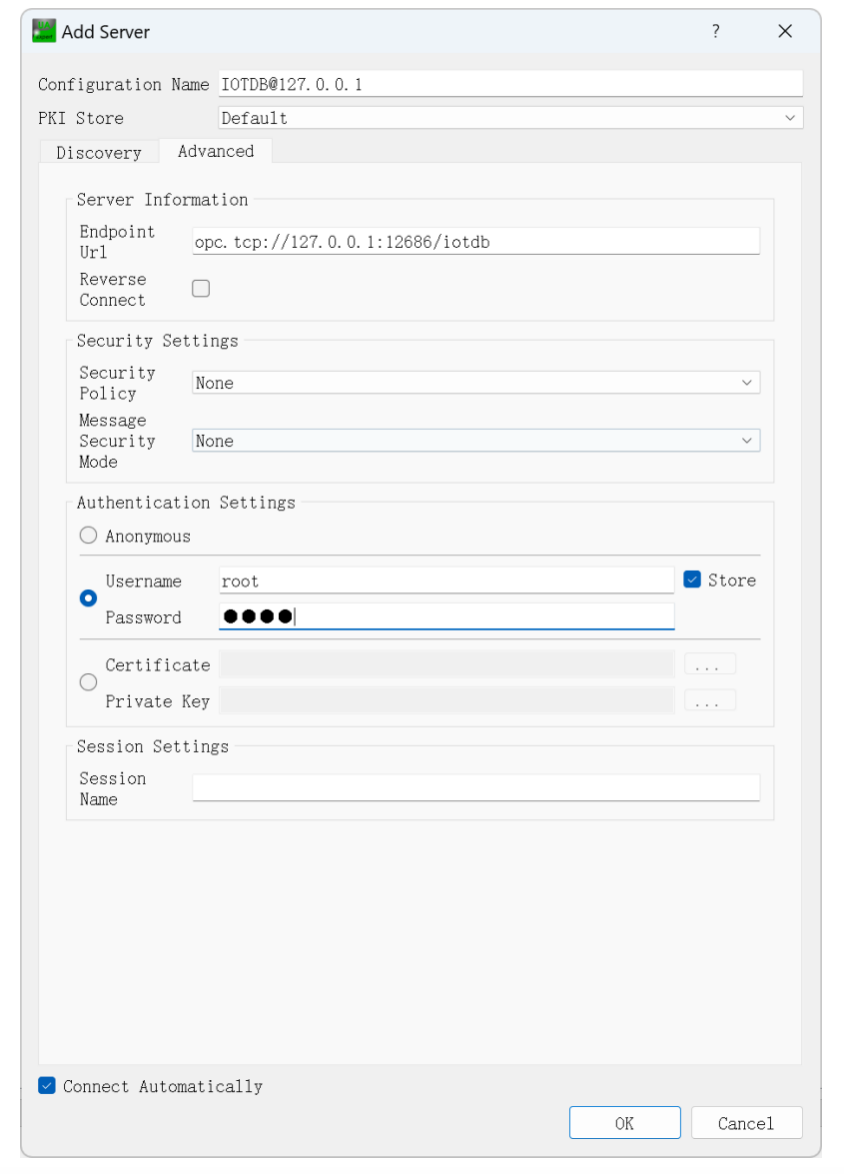
Configure the connection to IoTDB in UAExpert, where the password should be set to the one defined in the sink.password parameter (using the default password "root" as an example):

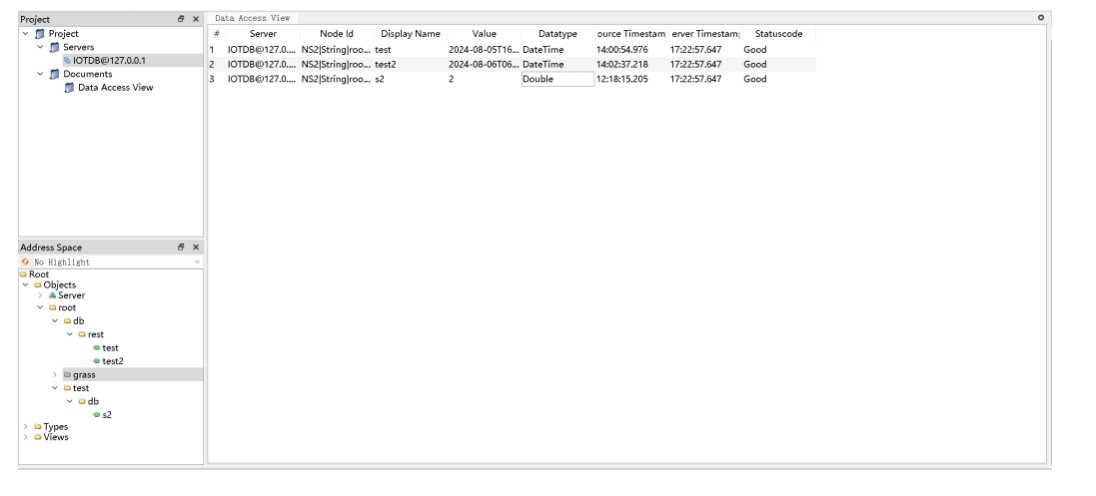
After trusting the server's certificate, you can see the written data in the Objects folder on the left.
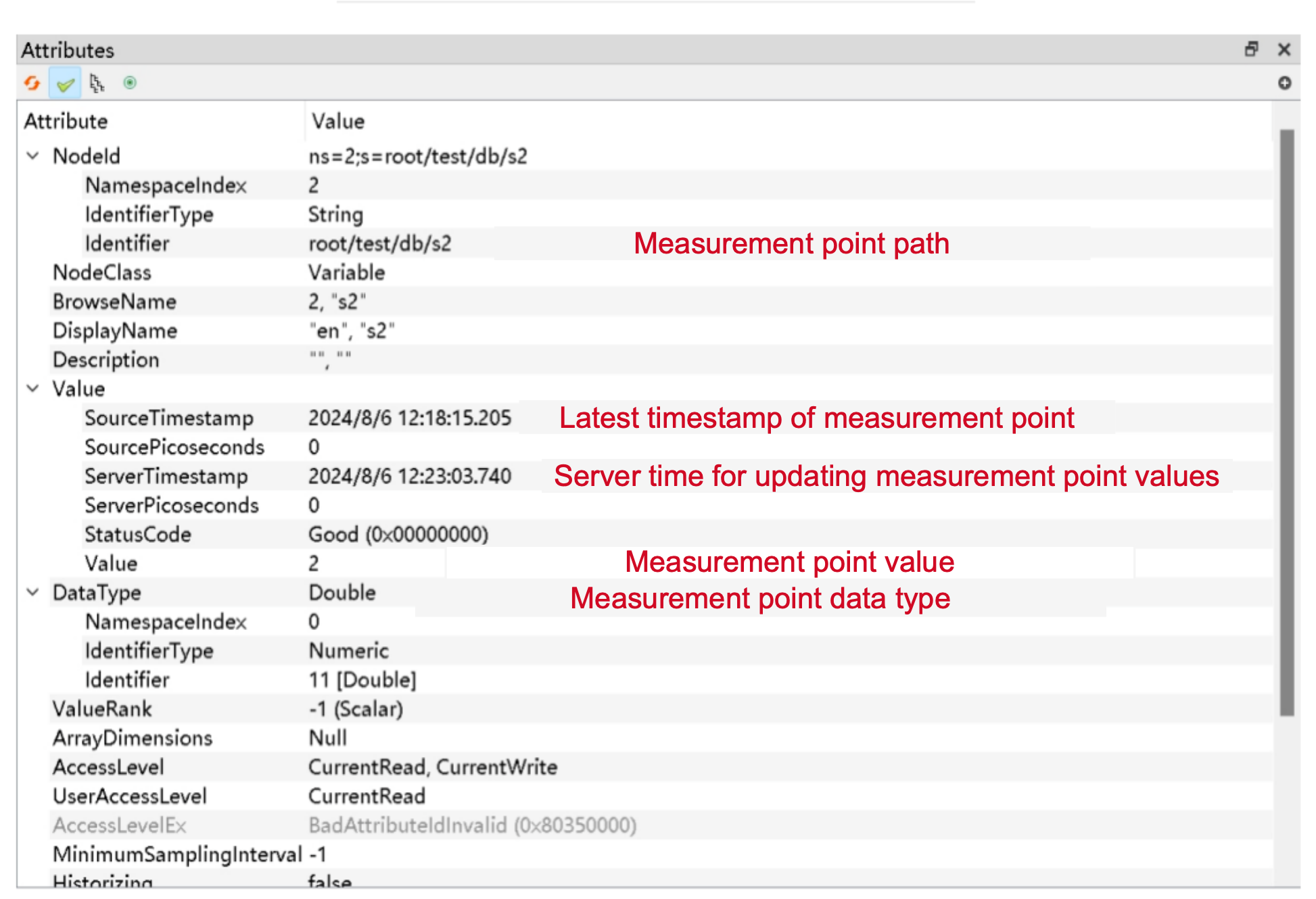
Note: Since the SecurityPolicy is set to None, mutual certificate trust is not required. For production environments, it is recommended to use a non-None SecurityPolicy for connection, which requires mutual certificate trust. For operations, refer to the Pub/Sub mode section below. In the Client/Server certificate directory (search for the keyword keyStore in the printed logs), move the contents in reject to trusted/certs. Follow the sequence: connect → move server directory → connect → move client directory → connect.
You can drag the node on the left to the center and display the latest value of that node:
Scenarios Not Supporting the None Security Policy
Use the following SQL to create and start the OPC UA service.
create pipe p1 with sink ('sink'='opc-ua-sink');Note: Since version V1.3.7.2, OpcUaSink no longer supports None mode by default for security considerations.
Insert some test data.
insert into root.test.db(time, s2) values(now(), 2);Configure the IoTDB connection in UAExpert:
- Do not access the URL directly; endpoints must be discovered using the Discover method
- The client first sends a GetEndpoints request with the None policy to retrieve the endpoint list
- It then selects the corresponding encrypted endpoint based on the configured Basic256Sha256 + SignAndEncrypt to establish an encrypted connection
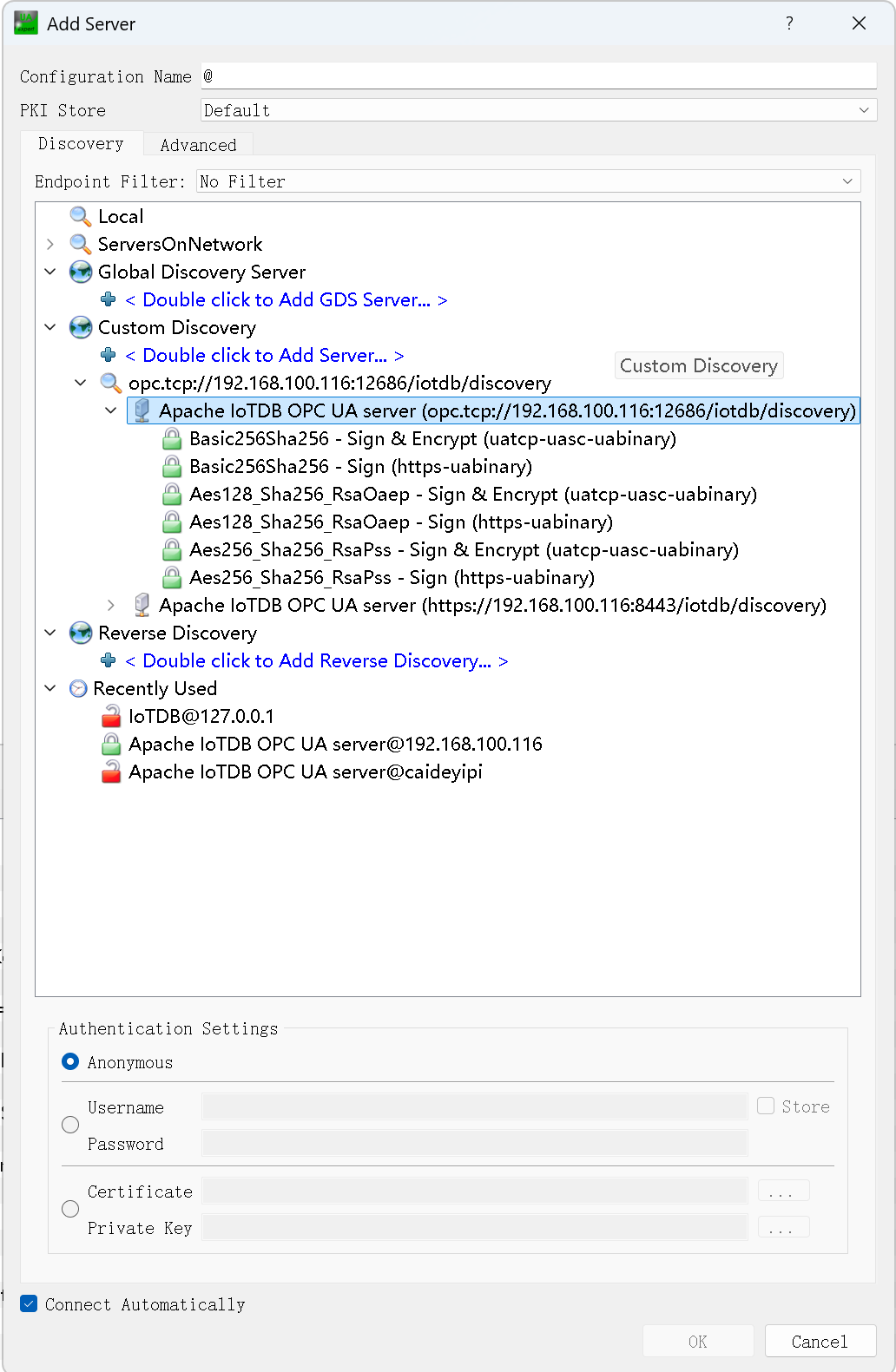
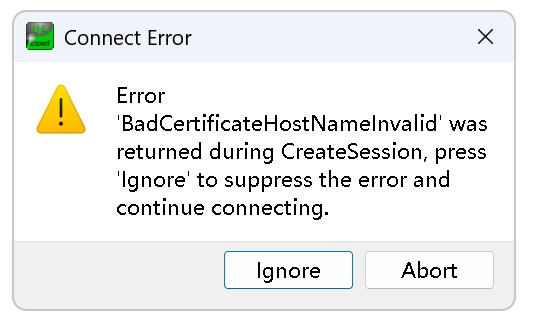
Use the same username and password configuration as above. After selecting the relevant connection mode (Sign / Sign & Encrypt), if the following prompt appears, click Ignore to connect directly.
Pub / Sub Mode
In this mode, IoTDB's stream processing engine sends data change events to the OPC UA Server through an OPC UA Sink. These events are published to the server's message queue and managed through Event Nodes. Other OPC UA Clients can subscribe to these Event Nodes to receive notifications upon data changes.
Features:
Each measurement point is wrapped as an Event Node in OPC UA.
The relevant fields and their meanings are as follows:
| Field | Meaning | Type (Milo) | Example |
| :--------- | :--------------------------------- | :------------ | :-------------------- |
| Time | Timestamp | DateTime | 1698907326198 |
| SourceName | Full path of the measurement point | String | root.test.opc.sensor0 |
| SourceNode | Data type of the measurement point | NodeId | Int32 |
| Message | Data | LocalizedText | 3.0 |Events are only sent to clients that are already listening; if a client is not connected, the Event will be ignored.
If data is deleted, the information cannot be pushed to clients.
Preparation Work
The code is located in the opc-ua-sink under the iotdb-example package.
The code includes:
- The main class (ClientTest)
- Client certificate-related logic(IoTDBKeyStoreLoaderClient)
- Client configuration and startup logic(ClientExampleRunner)
- The parent class of ClientTest(ClientExample)
Quick Start
The steps are as follows:
Start IoTDB and write some data.
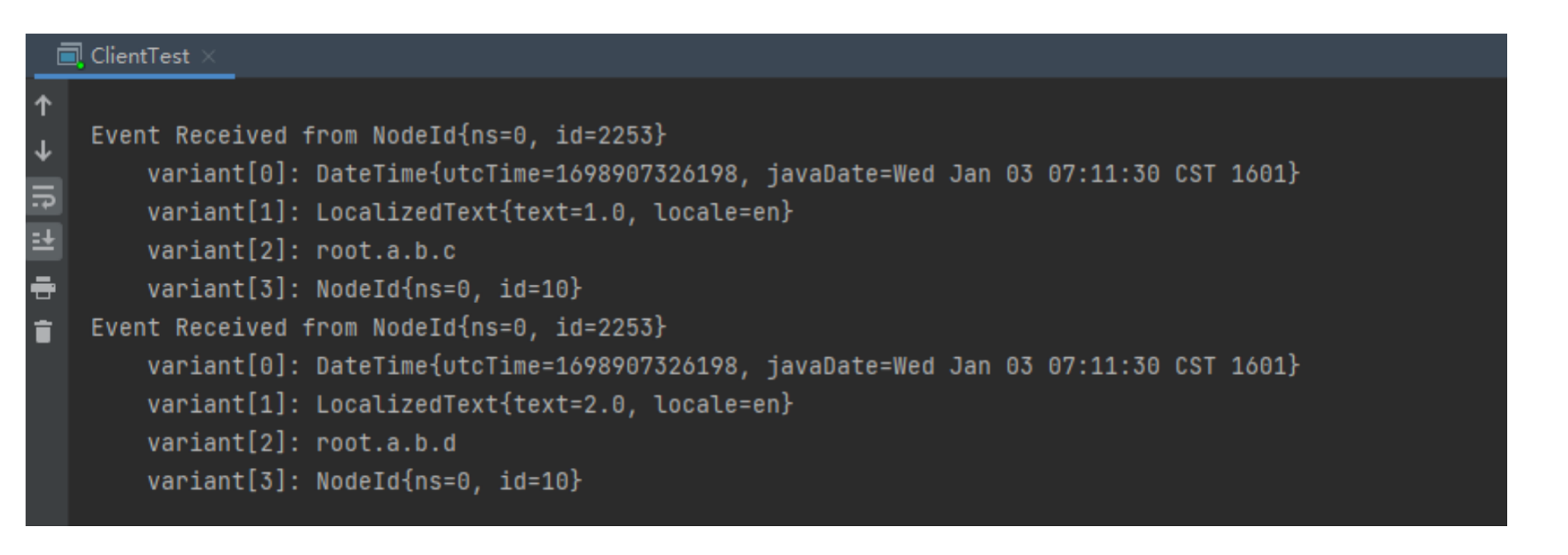
insert into root.a.b(time, c, d) values(now(), 1, 2);The metadata is automatically created and enabled here.
Use the following SQL to create and start the OPC UA Sink in Pub-Sub mode. For detailed syntax, please refer to: IoTDB OPC Server Syntax
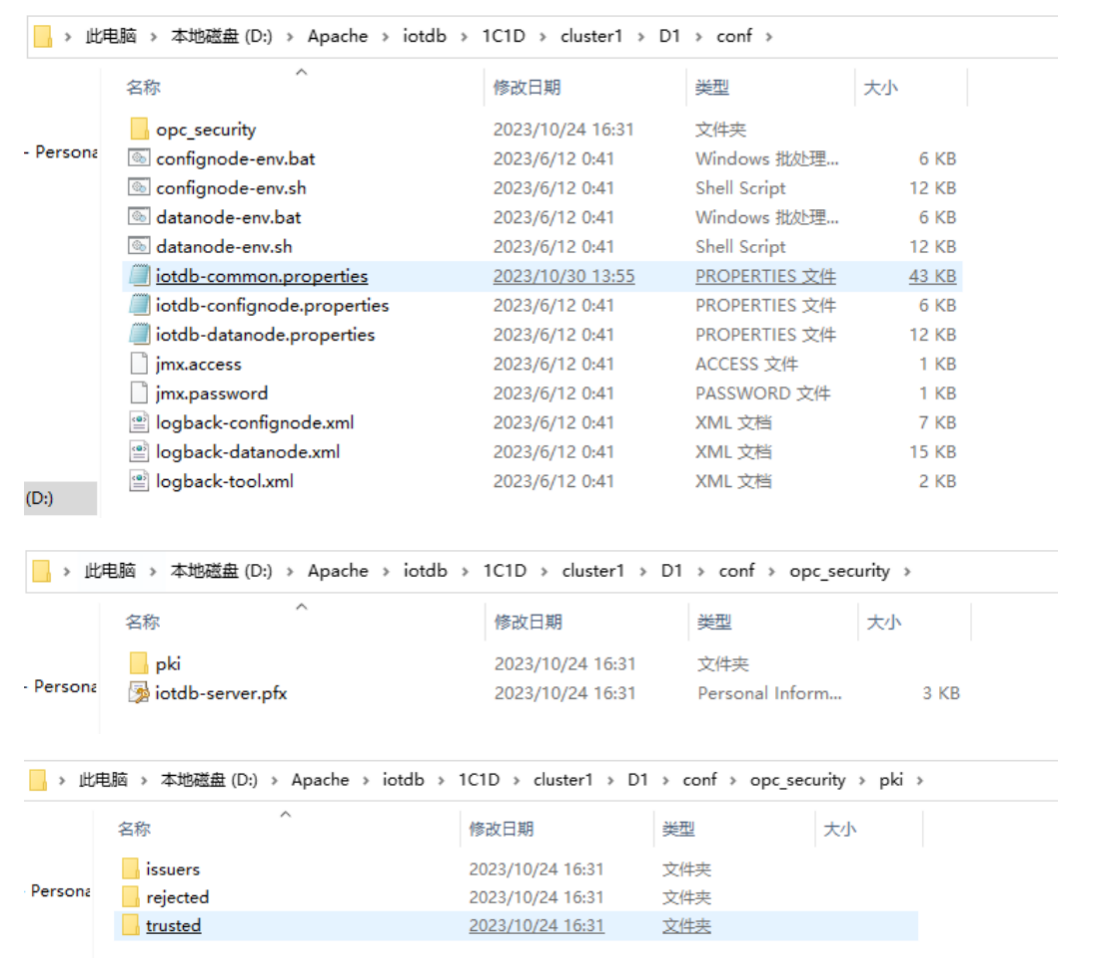
create pipe p1 with sink ('sink'='opc-ua-sink', 'sink.opcua.model'='pub-sub'); start pipe p1; At this point, you can see that the opc certificate-related directory has been created under the server's conf directory.
Run the Client connection directly; the Client's certificate will be rejected by the server.
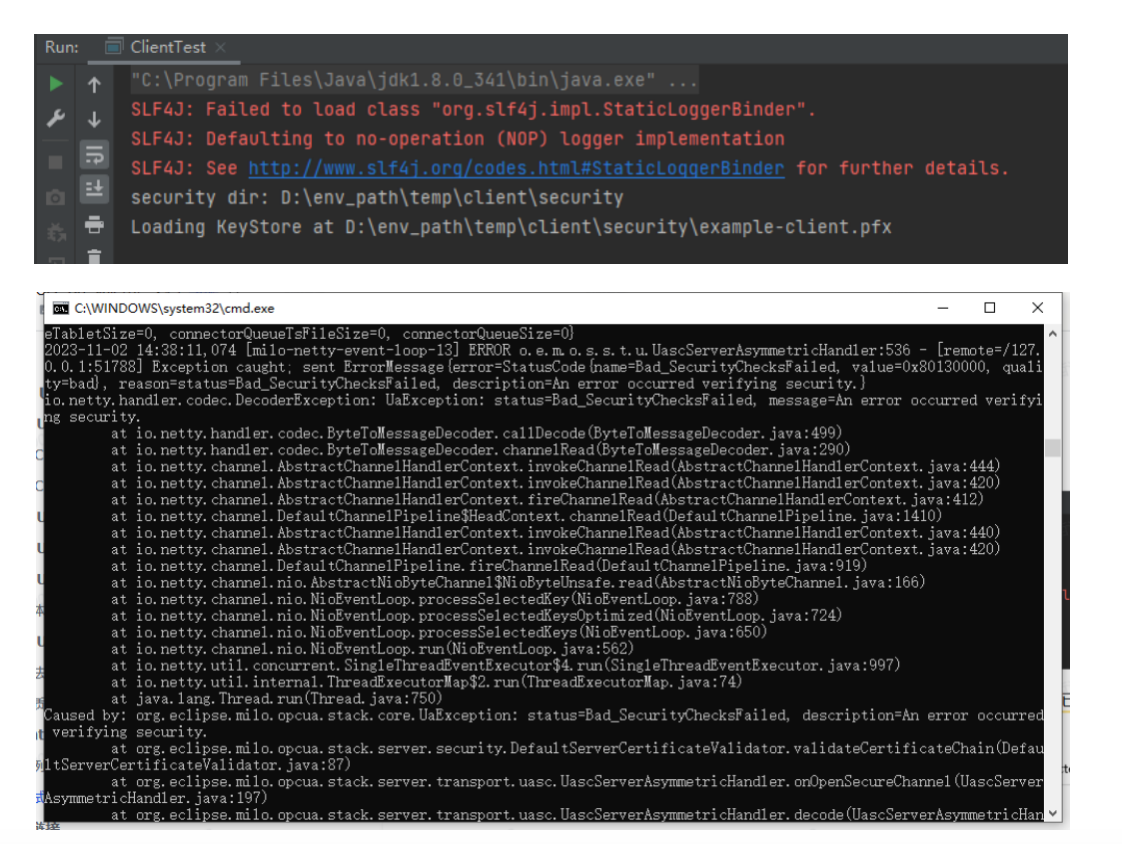
Go to the server's sink.opcua.security.dir directory, then to the pki's rejected directory, where the Client's certificate should have been generated.

Move (not copy) the client's certificate into (not into a subdirectory of) the trusted directory's certs folder in the same directory.

Open the Client connection again; the server's certificate should now be rejected by the Client.

Go to the client's <java.io.tmpdir>/client/security directory, then to the pki's rejected directory, and move the server's certificate into (not into a subdirectory of) the trusted directory.

Open the Client, and now the two-way trust is successful, and the Client can connect to the server.
Write data to the server, and the Client will print out the received data.
Notes
**stand alone and cluster:**It is recommended to use a 1C1D (one coordinator and one data node) single machine version. If there are multiple DataNodes in the cluster, data may be sent in a scattered manner across various DataNodes, and it may not be possible to listen to all the data.
No Need to Operate Root Directory Certificates: During the certificate operation process, there is no need to operate the
iotdb-server.pfxcertificate under the IoTDB security root directory and theexample-client.pfxdirectory under the client security directory. When the Client and Server connect bidirectionally, they will send the root directory certificate to each other. If it is the first time the other party sees this certificate, it will be placed in the reject dir. If the certificate is in the trusted/certs, then the other party can trust it.It is Recommended to Use Java 17+:
In JVM 8 versions, there may be a key length restriction, resulting in an "Illegal key size" error. For specific versions (such as jdk.1.8u151+), you can addSecurity.setProperty("crypto.policy", "unlimited");; in the create client of ClientExampleRunner to solve this, or you can download the unlimited packagelocal_policy.jarandUS_export_policyto replace the packages in theJDK/jre/lib/security. Download link: https://www.oracle.com/java/technologies/javase-jce8-downloads.html.